Nursing Standard app FAQs
Happy to help
You’ve come to this page because you need us to clarify something about the Nursing Standard app. We hope you find the answer to your question among the responses below.
App is taking up too much space
To clear space on your phone you can delete past issues you have finished reading.
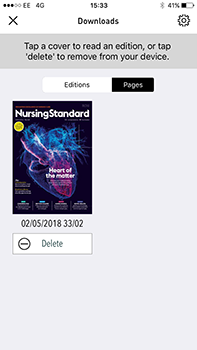
To do this you will need to click on ‘downloads’ at the bottom of the menu screen. This will take you to a screen showing all the issues that have been downloaded.
On an iOS device you will see a ‘delete’ button below each issue. Press this button and the edition will be deleted from the app.
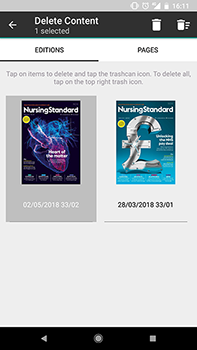
On an Android device you will need to press and hold the issue you want to remove to make the 'delete content' menu appear. Press the left-hand bin icon to delete the selected issue and the right-hand bin icon to delete all downloaded issues.
If you are still experiencing problems, please contact our customer services team and include your account details.
How to delete an issue
To delete an issue in an app, first you need to click on the ‘downloads’ button found at the bottom of the menu screen.
This will take you to a screen showing all the issues that have been downloaded.
On an iOS device you will see a ‘delete’ button below each issue. Press this button and the edition will be deleted from the app.
On an Android device you will need to press and hold the issue you want to remove to make the 'delete content' menu appear. Press the left-hand bin icon to delete the selected issue and the right-hand bin icon to delete all downloaded issues.
If you are still experiencing problems, please contact our customer services team and include your account details.
Accessing subscriptions across different devices
Please be aware, you can only share subscriptions across devices if they use the same operating system.
For example, if you have a subscription on an iOS device you cannot view your subscription on an Android device.
If you are still experiencing problems, please contact our customer services team and include your account details.
Clearing the cache on iOS apps
In order to clear the cache, you must click on the app settings tab which takes you to the storage page.
At the bottom of this screen, you will see an option to ‘Clear stored application data’.
Finally fully close down the app and reload it. This will then load the latest content within the app.
If you are still experiencing problems, please contact our customer services team and include your account details.